Audience: All Users (Starter, Core, Pro, Enterprise)
Topic: Contract Management & Hosting
This guide provides a straightforward process for accessing borrower contracts through the Admin Portal and , ensuring that users can efficiently retrieve important documents. By following the outlined steps, users can quickly locate and download rental-purchase agreements, streamlining their workflow. This resource is essential for anyone needing to manage borrower contracts effectively and maintain organized records.
Access through Admin portal
In the world of financing, the contract is the ultimate source of truth. PayPlan eliminates the need for physical filing cabinets by acting as a centralized, cloud-based repository for all your legal agreements, disclosure forms, and signed contracts.
Whether you are a retail merchant using scanning QR codes or an enterprise financial institution managing a national portfolio, your documents are securely hosted and easily accessible within the platform.
Where to Locate Customer Contracts
It is important to note that borrower agreements are stored in PayPlan the moment the customer accepts their offer and completes the e-signature stage. At that time, the fully executed contract is automatically uploaded to the system and anchored to the customer's file.
You can access these documents through two primary areas in the Admin Portal:
Option 1. During the Origination Phase (Applications Tab)
If a customer is still in the process of applying or has recently signed but hasn't been funded yet, their documents are hosted within the Applications section.
-
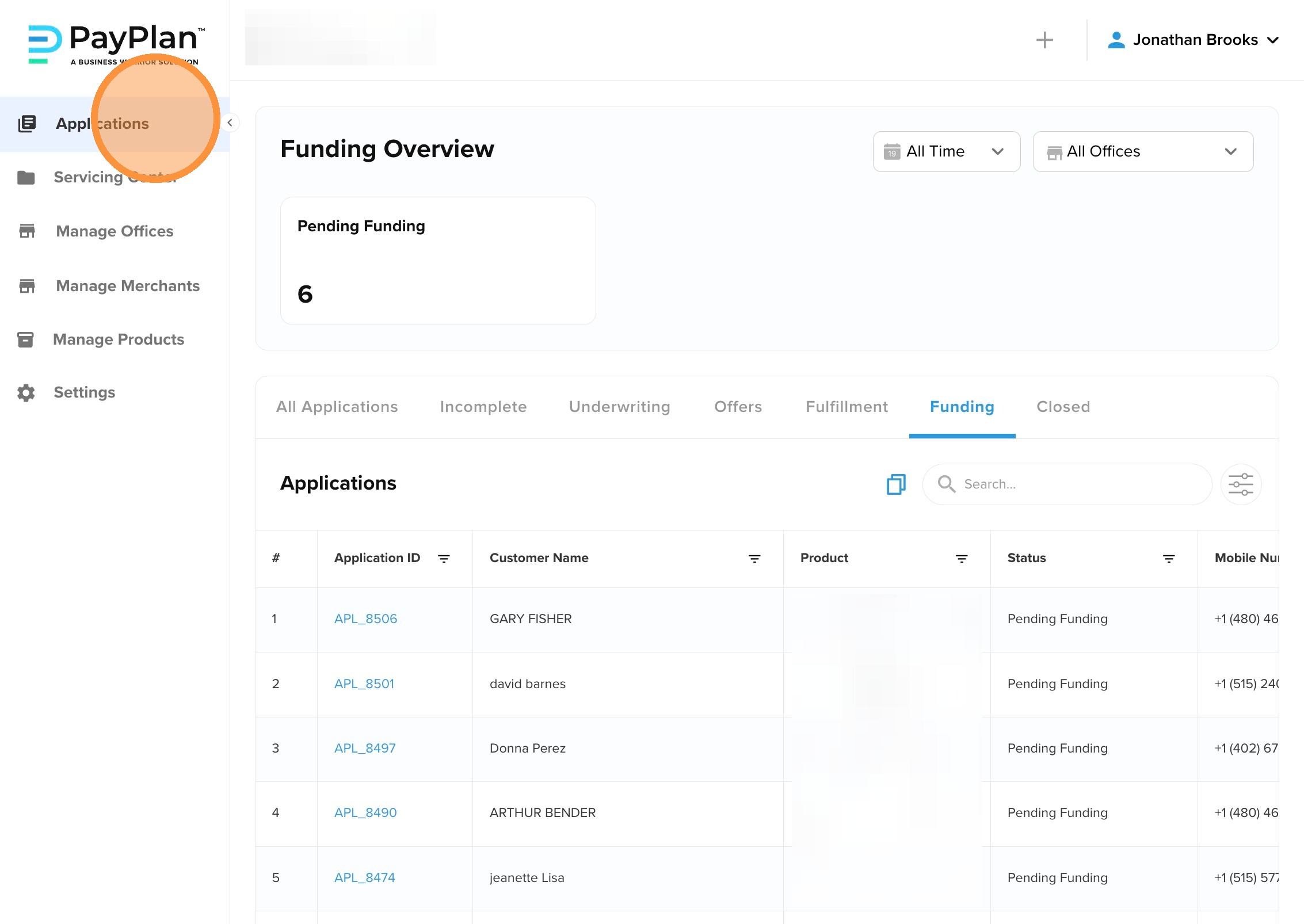
Navigate to: Admin Portal → Applications tab.
-
Action: Click on the specific Application ID (e.g., APL_1024).
-
View: Click the Documents sub-tab. Once the e-signature stage is complete, the signed contract will appear here automatically.
1. Click "Applications"
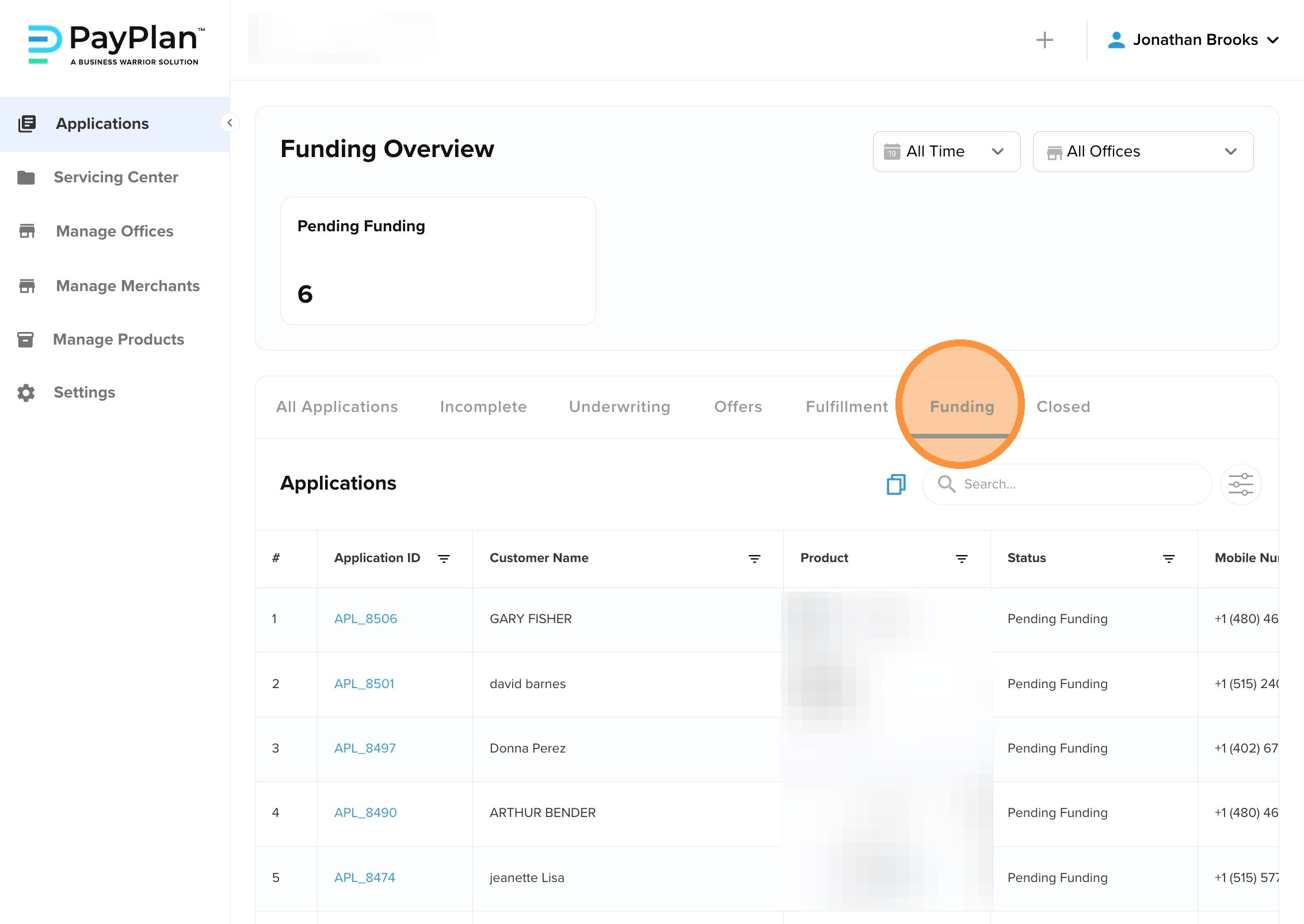
2. Click "Funding". Important note: contracts are generated and stored after they are signed by the borrower which occurs after accepting the Offer.
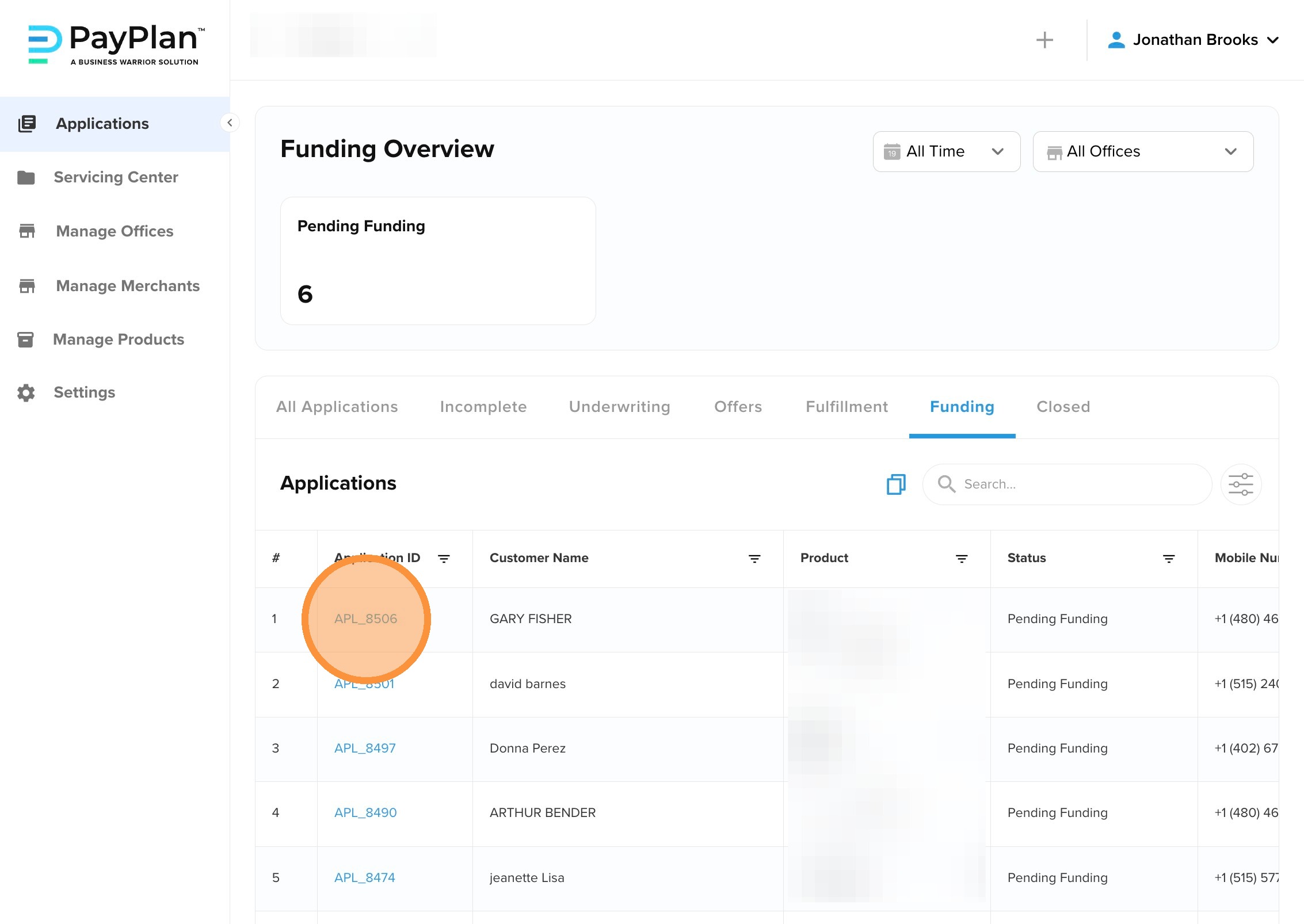
3. Click the Application ID for the borrower's contract.
4. Click "Documents"
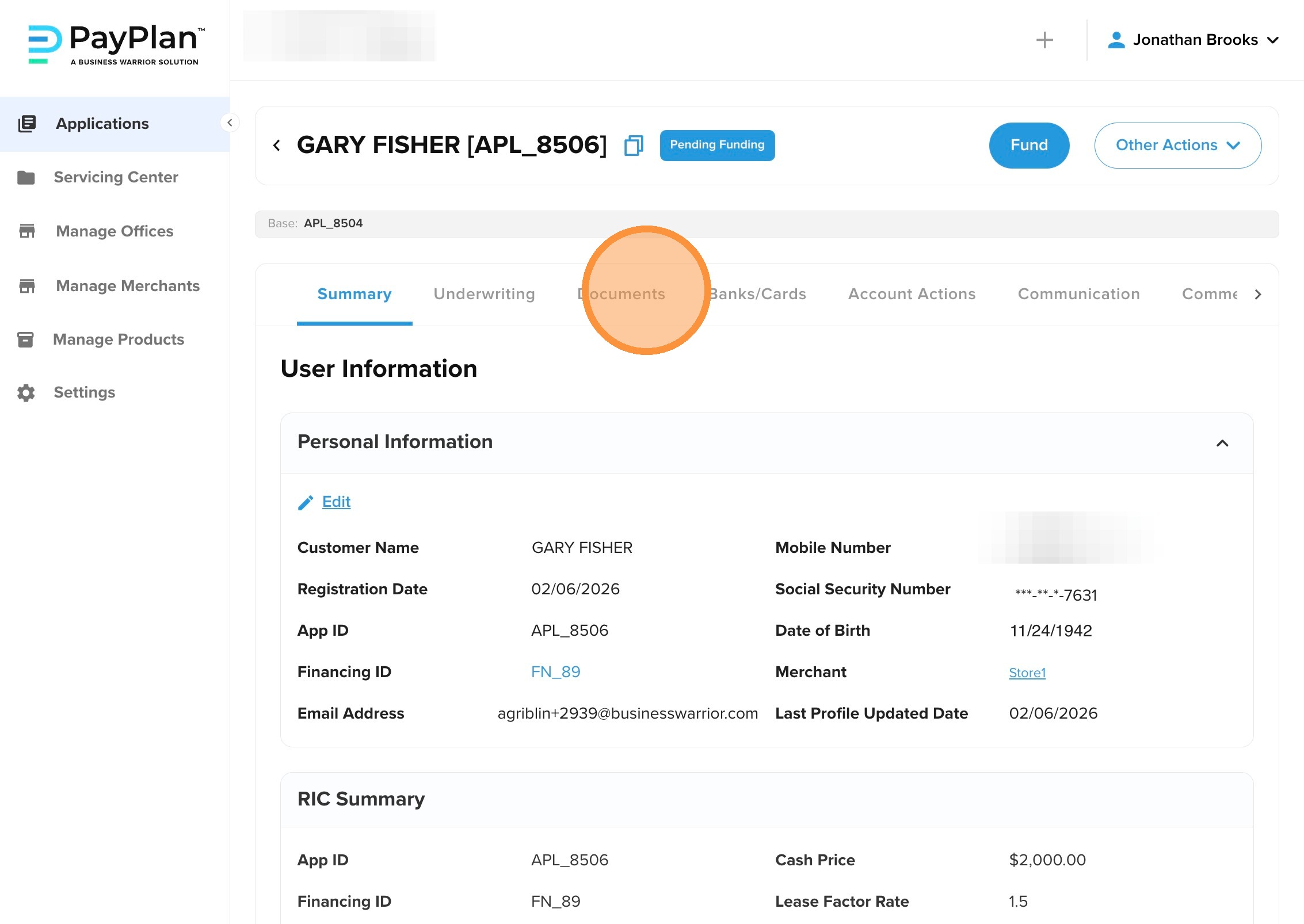
5. Click "..."
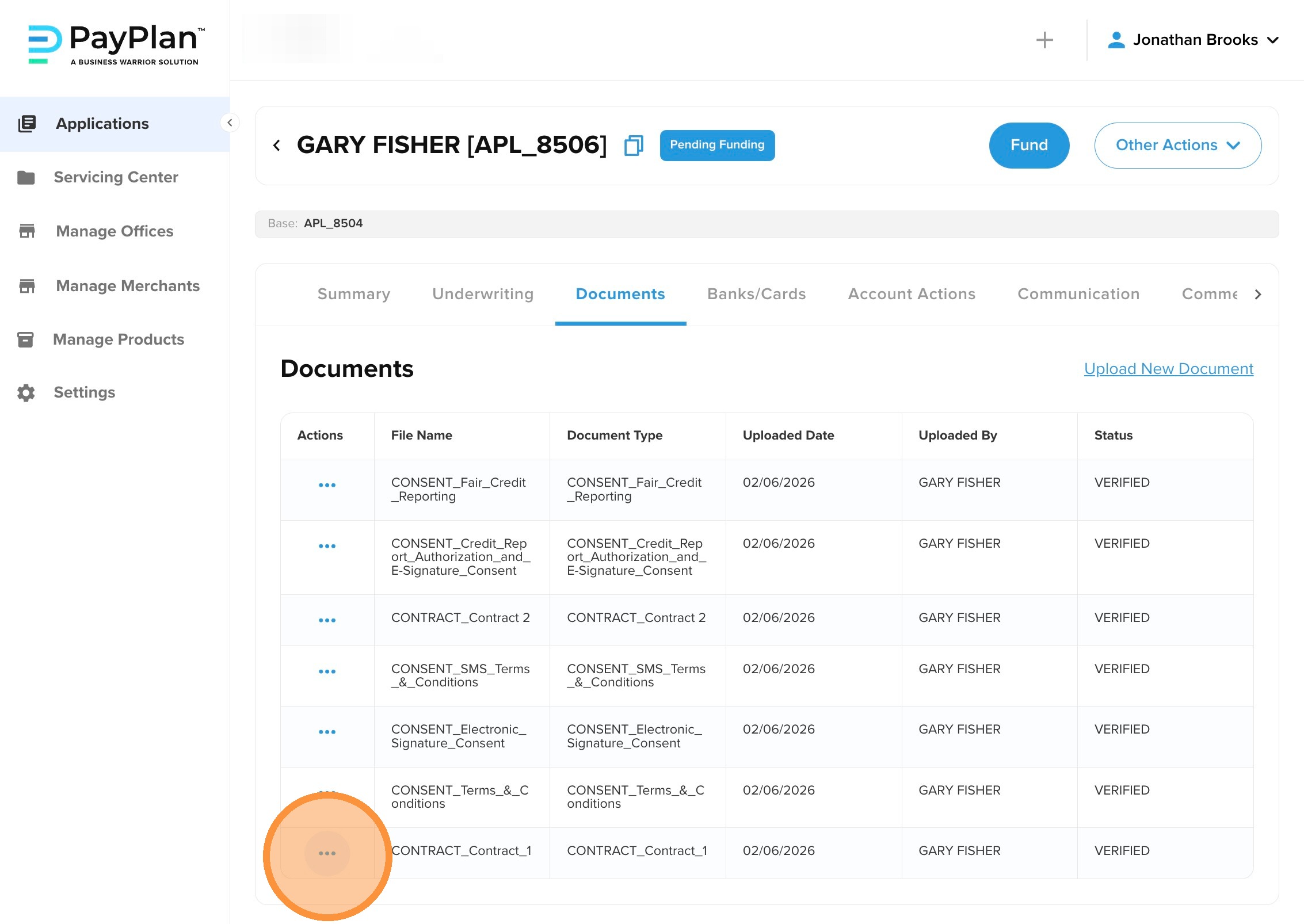
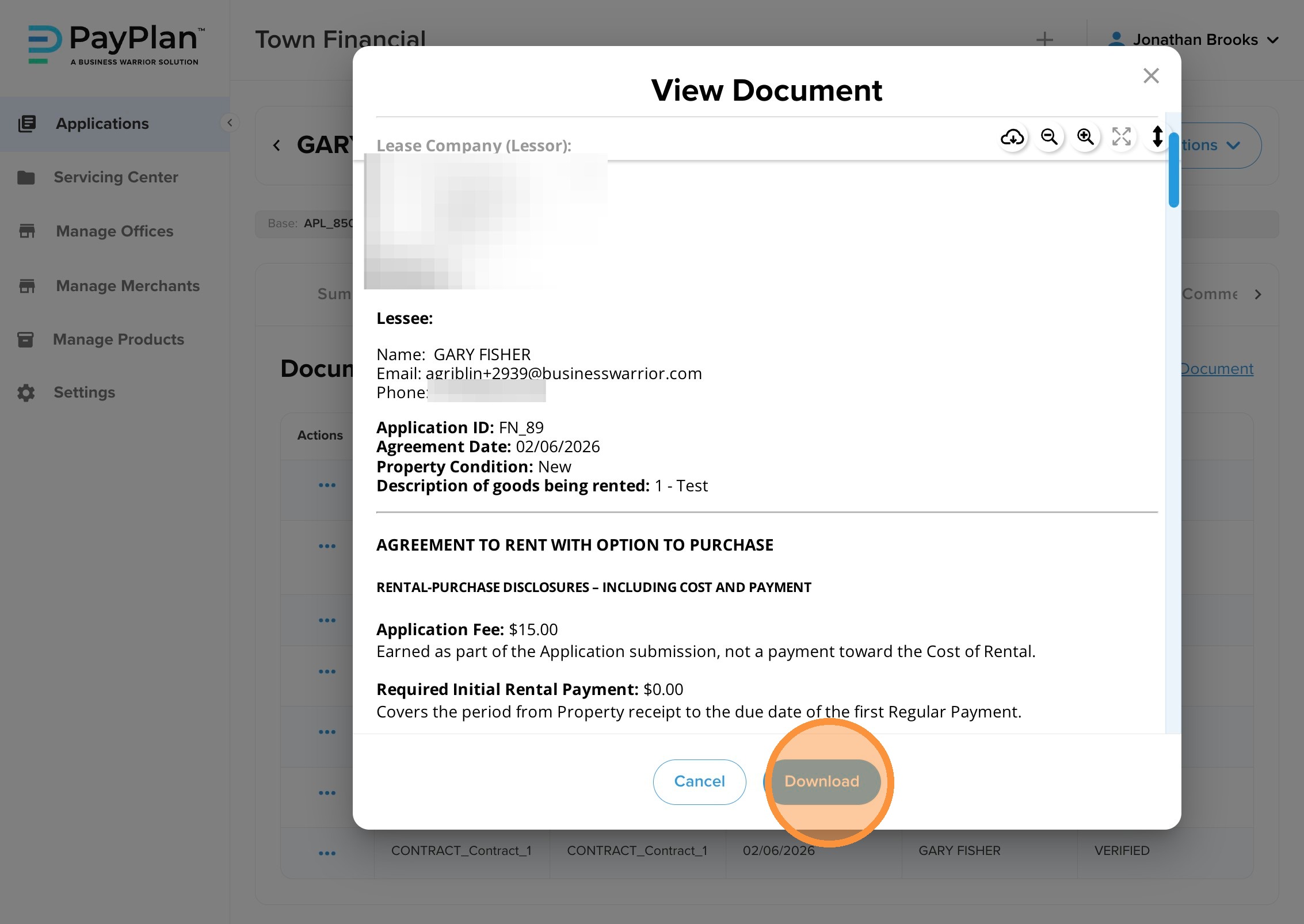
6. Click "View or Download"
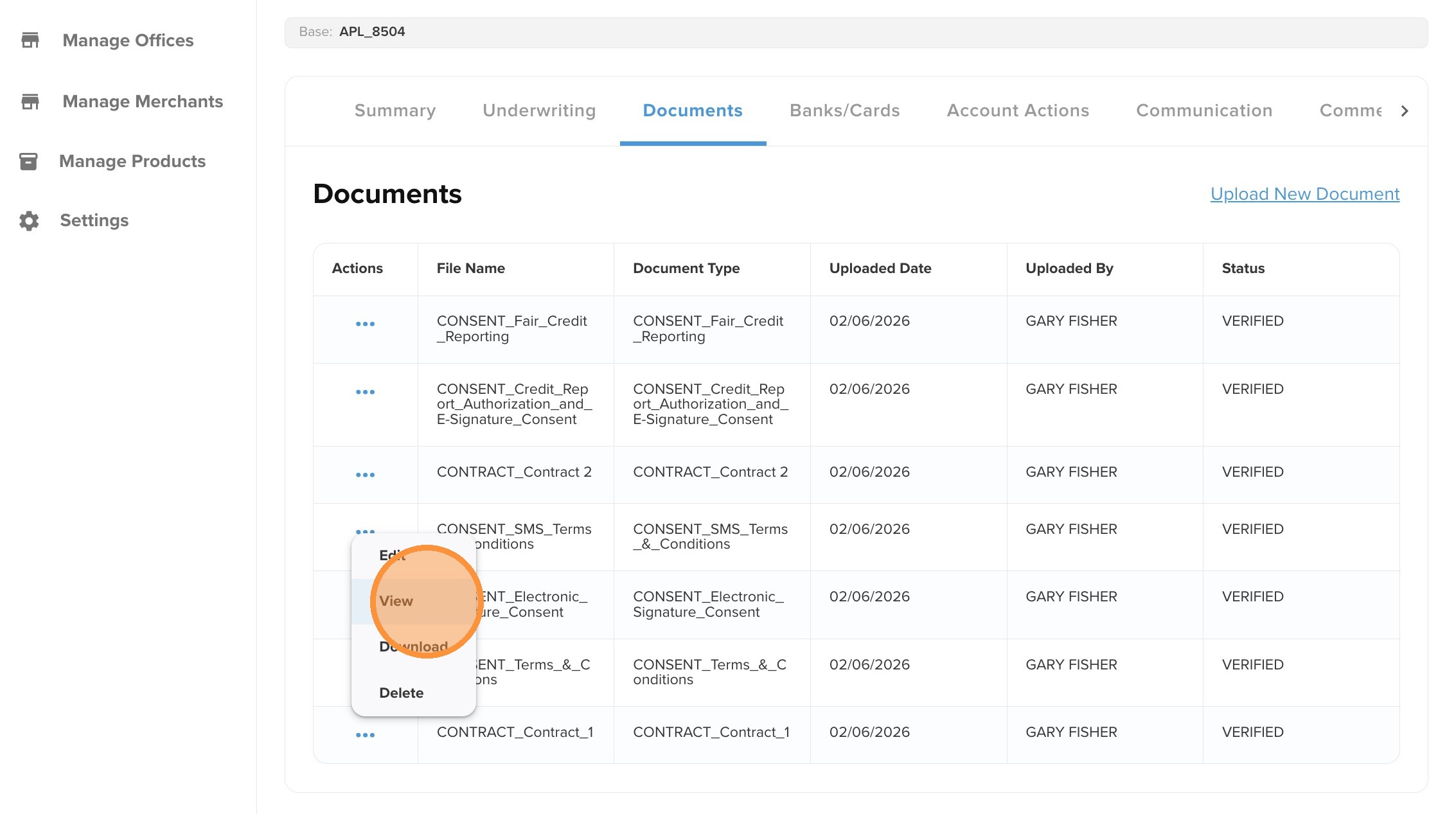
7. You may scroll throughout the agreement
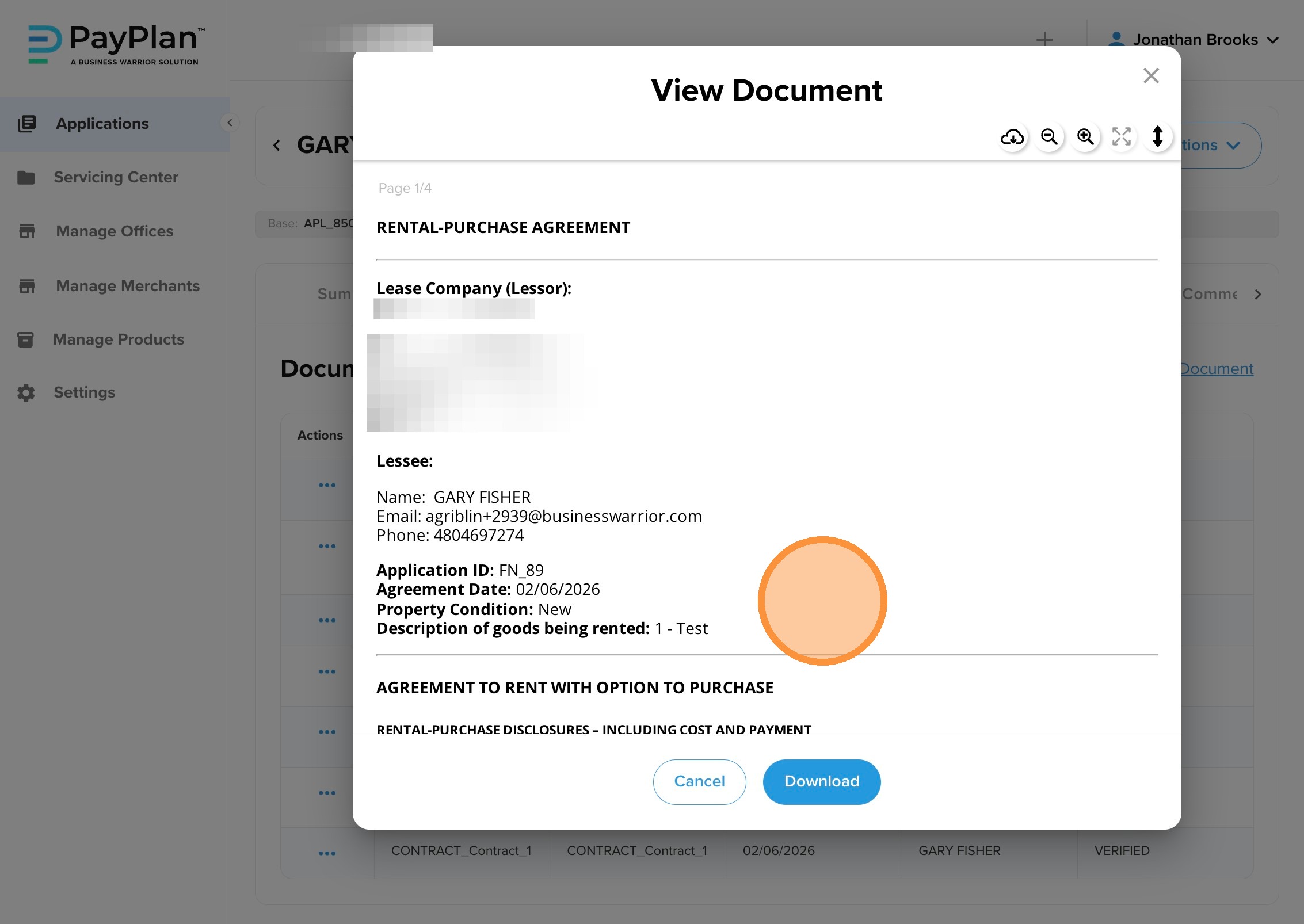
8. Or click "Download"
Option 2. During the Repayment Phase (Servicing Center)
Once a deal is funded and moves into active repayment, the permanent record of the loan and its associated contracts resides in the Servicing Center.
-
Navigate to: Admin Portal → Servicing Center tab.
-
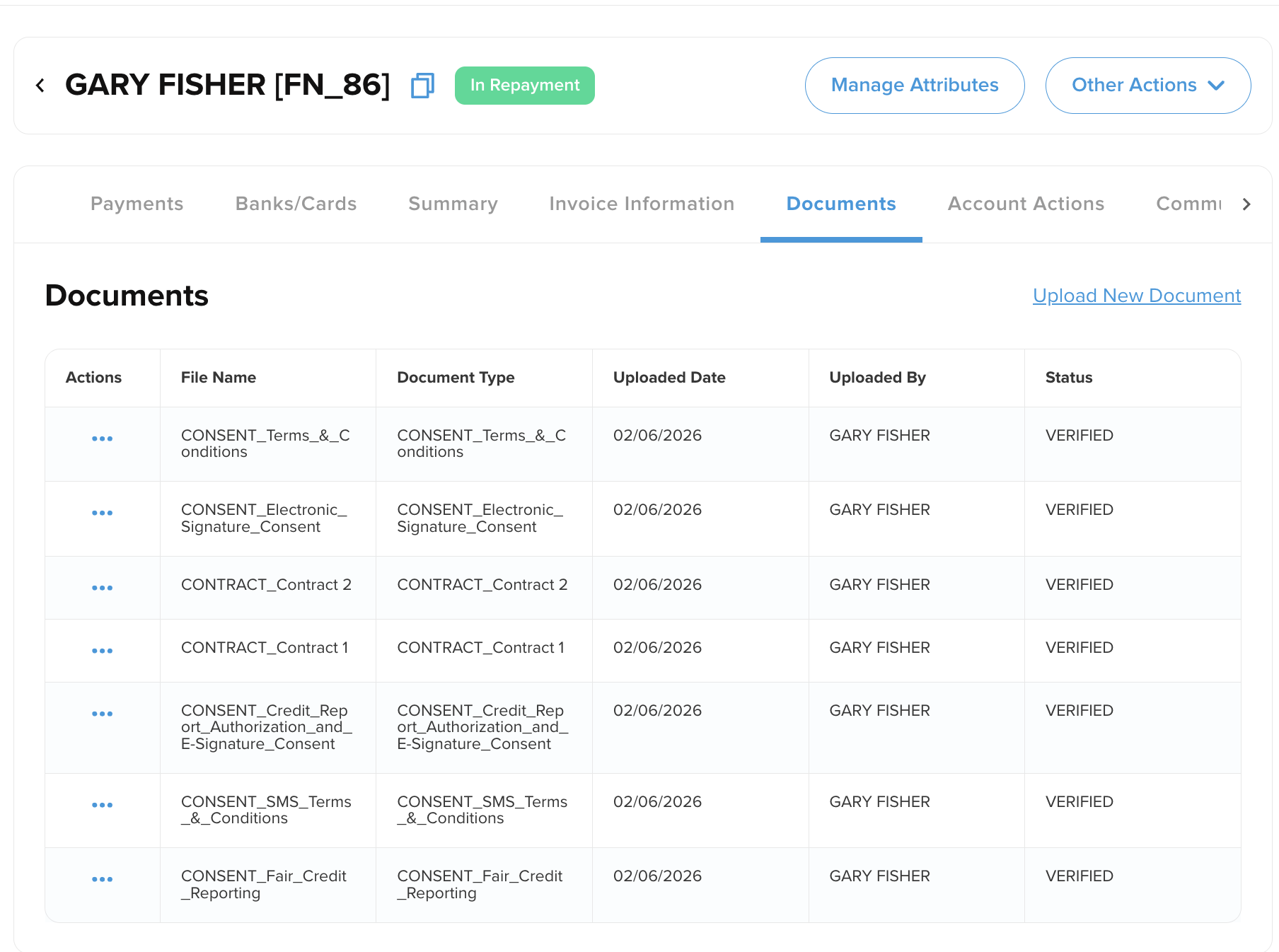
Action: Search for the borrower and click on their Financing ID (e.g., FN_350).
-
View: Click the Documents sub-tab. You can view, download, or audit the fully executed PDF agreements here.
Access through Customer Portal
Borrowers have 24/7 access to their legal documents through the mobile-responsive Customer Portal. This reduces the volume of "Where is my contract?" calls to your support team.
-
Login: The borrower logs into their account via the unique link provided during their application.
-
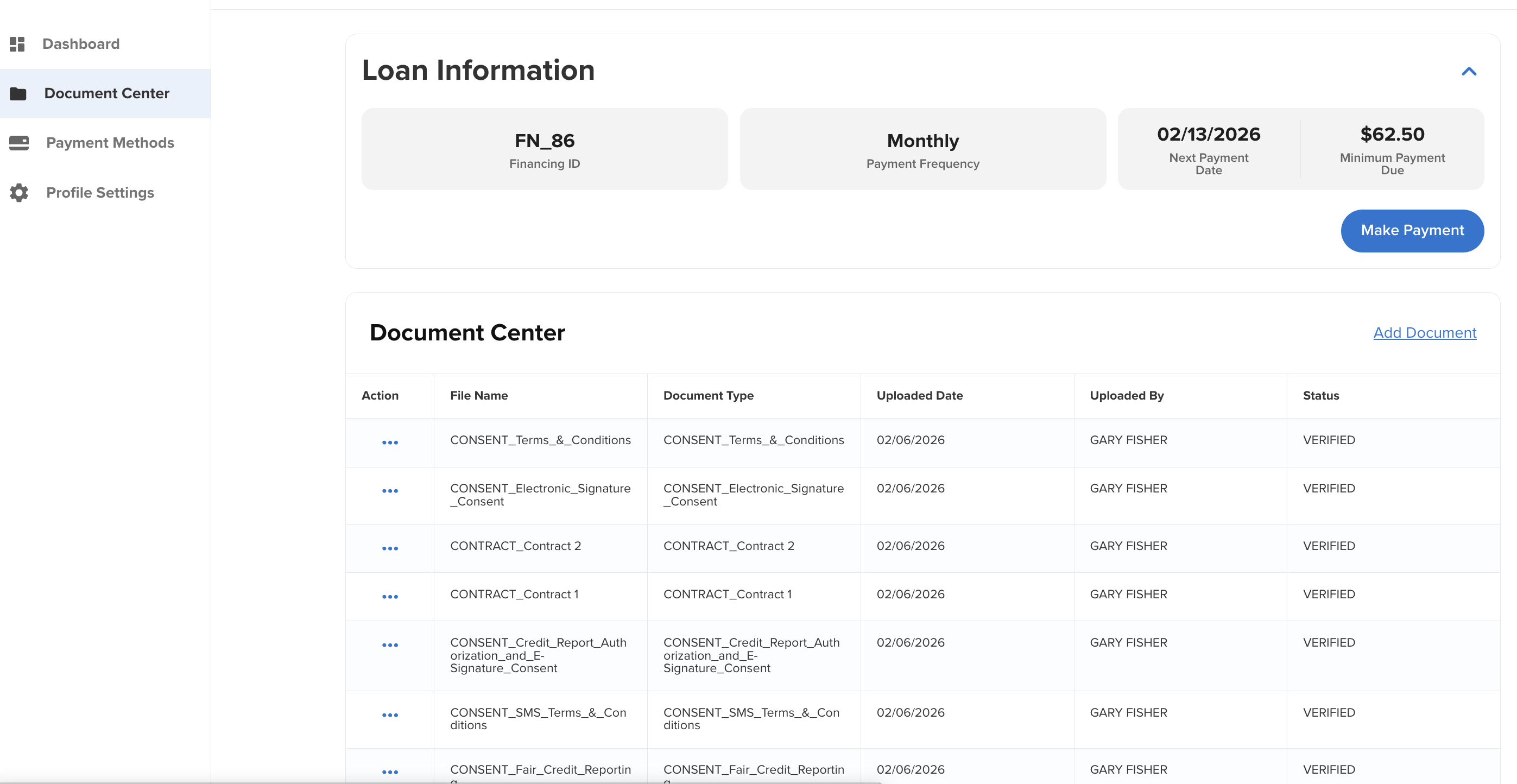
Navigation: Inside the portal menu, they can navigate to the Document Center section
-
Download: All signed agreements, including the initial financing contract and any subsequent signed disclosures, are hosted here as downloadable PDFs.
Key Hosting Capabilities
Centralized Repository
PayPlan acts as your digital vault. Every piece of text the customer interacts with, from the initial "Welcome" SMS to the final "Finance Agreement", is managed and hosted here.
Dynamic Templates
Our Document Center allows you to host and manage templates that automatically pull in real-time data. The system inserts the borrower’s name, application ID, and approved amount into the agreement dynamically, ensuring every hosted contract is 100% accurate to that specific deal.
Digital Audit Trail
Every hosted document includes a permanent record of the digital signature. For compliance, the system logs the timestamp and the borrower's IP address at the moment of signing, providing a defensible audit trail for every action.
Best Practices
-
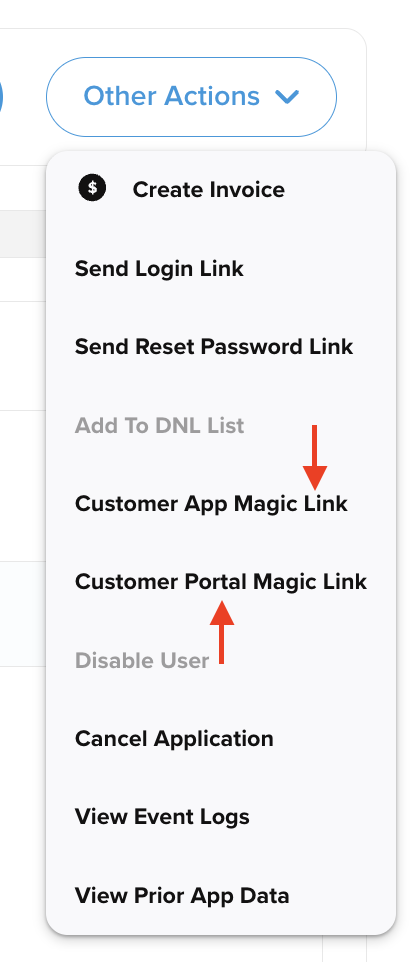
Use the Magic Link: If a customer is stuck during the signing stage, use the Customer App Magic Link in the Admin Portal to see exactly what they see on their screen. This drops your admin user directly on the borrower’s screen so you see what they see.
-
Magic Link Can Be Used Once In Servicing: Once the customer is in the Servicing Center, you can use the same great magic link technology Customer Portal Magic Link, to access the borrower’s portal; giving your admin team visibility and assistance to exactly what the borrower sees.
-
Automation Check: Since the contract is automatically uploaded upon completion of the e-sign stage, you can instantly verify the document before proceeding to manual funding or final approval.
-
Verification: Before funding a deal, always open the signed PDF in the Documents tab to verify signature placement and data accuracy.