
Audience: Operations Leads, Sales Associates, Underwriters
Topic: Workflow Management
Overview
PayPlan categorizes every loan application into distinct Stages. These stages act like a funnel, moving the customer from their initial sign-up, through the credit decision, and finally to funding.
This guide outlines how to navigate the Applications section of the Admin Portal to locate specific deals and understand where they are stuck in the process.
The Application Status Tabs
When you open the Applications page, you will see a series of tabs across the top. Each tab represents a specific phase of the lifecycle.
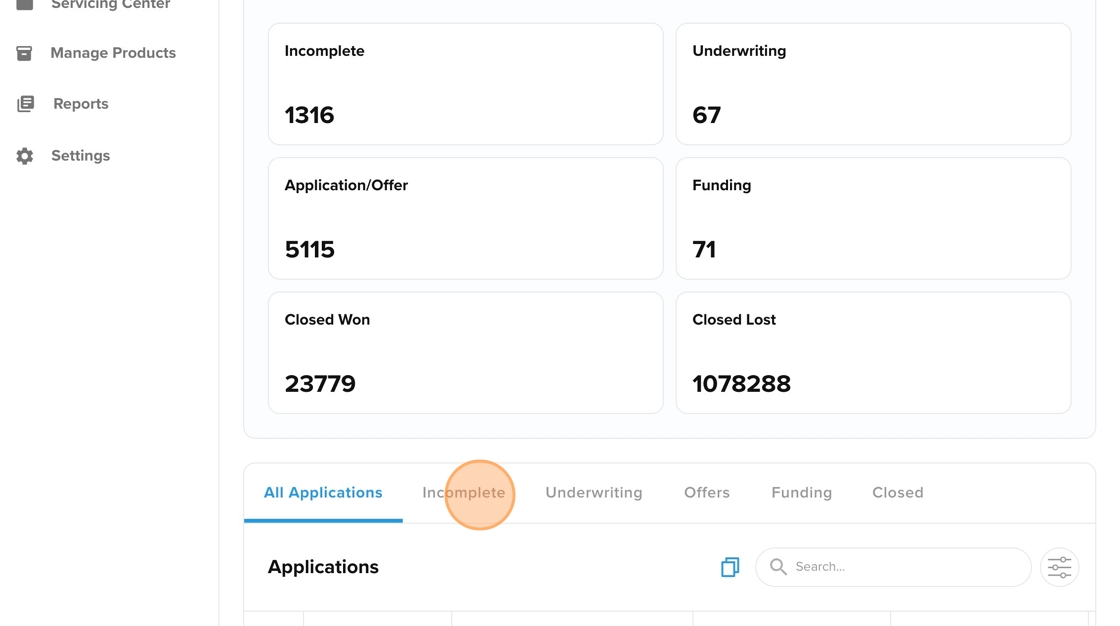
1. Incomplete
Definition: The "Shopping Cart Abandonment" phase. These are applicants who started the process (entered a phone number or email) but dropped off before submitting the full application.
-
What to do here: Sales teams often use this list to follow up with leads. You can see their contact info and reach out to help them finish the application.
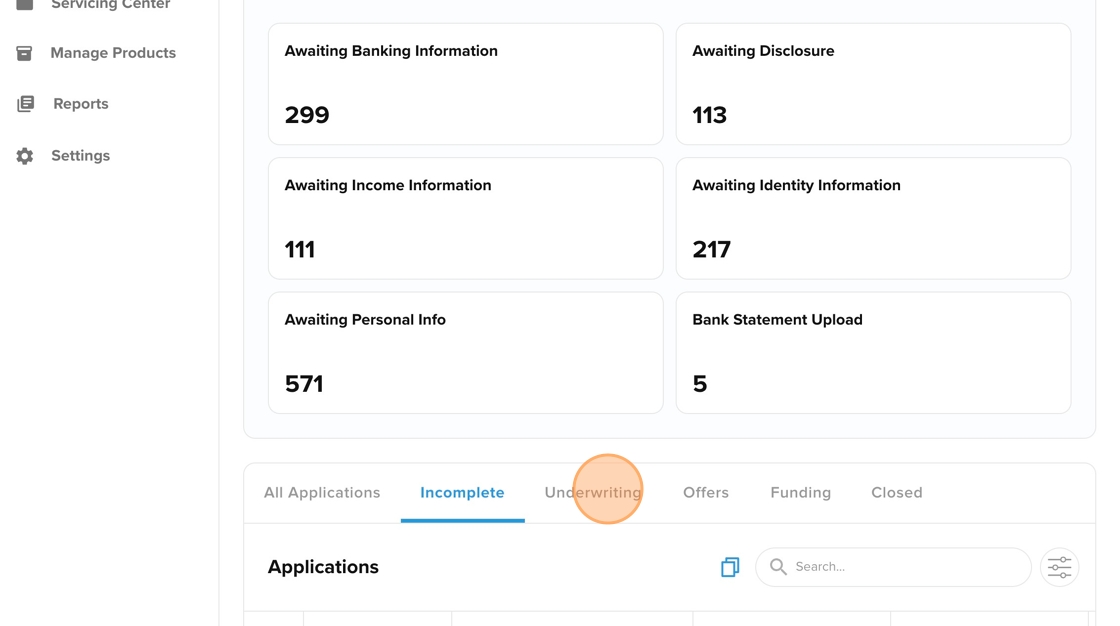
2. Underwriting
Definition: The "Decision" phase. These applications have been submitted and are currently being processed by the Decision Engine.
-
What to do here:
-
Automated Decisions: Most applications pass through this stage instantly.
-
Manual Review: If you have a "Hybrid" workflow, applications flagged for review will sit here. You must click into the record to Approve, Decline, or Request Docs (stipulations).
-
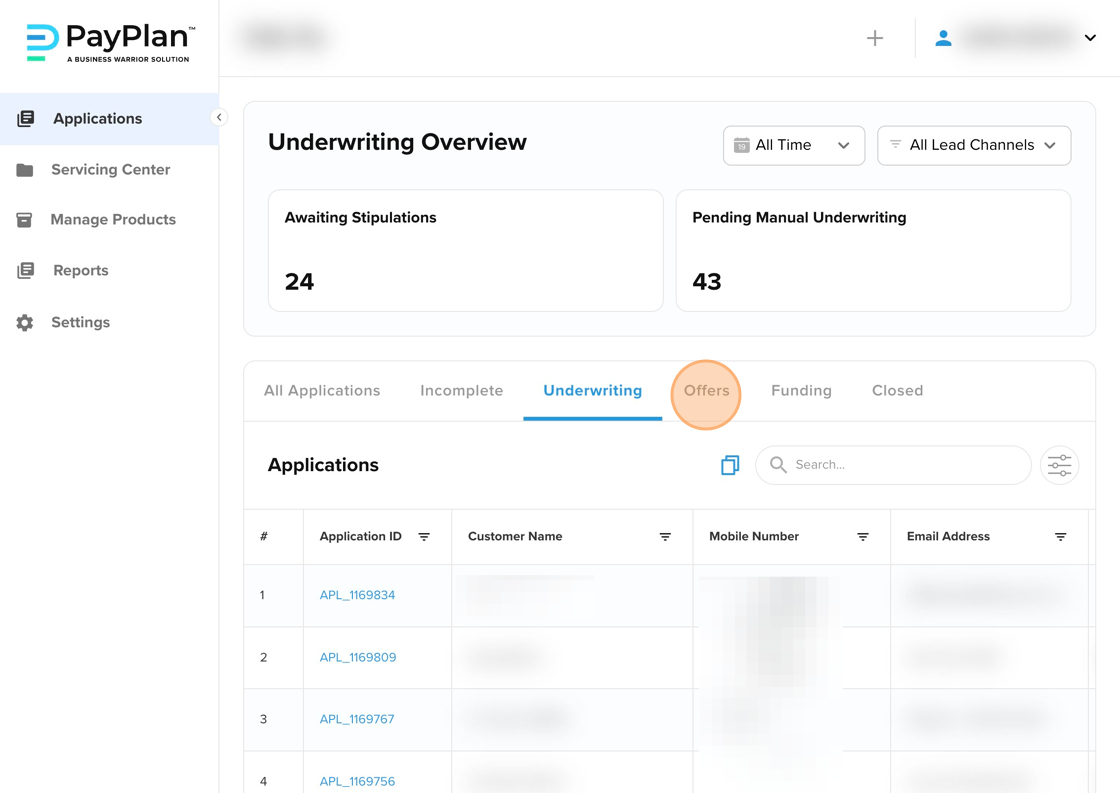
3. Offers
Definition: The "Awaiting Acceptance" phase. The customer has been approved, and offers have been generated, but the customer has not yet selected their term or signed the deal.
-
What to do here:
-
Retailers (Starter): This is often where you need to generate the Invoice so the customer can see the final amount.
-
Lenders: Monitor this tab to see your "Approved but not Converted" pipeline. You may want to reach out to these customers to close the deal.
-
4. Fulfillment
Definition: The "Paperwork" phase. The customer has selected an offer, but final steps are required before money moves.
-
What to do here:
-
Signatures: Check if the customer has signed the Loan Agreement and Payment Authorization.
-
Retailer Confirmation: For merchandise loans, you may need to click "Confirm Delivery" in this stage to verify the customer received the goods.
-
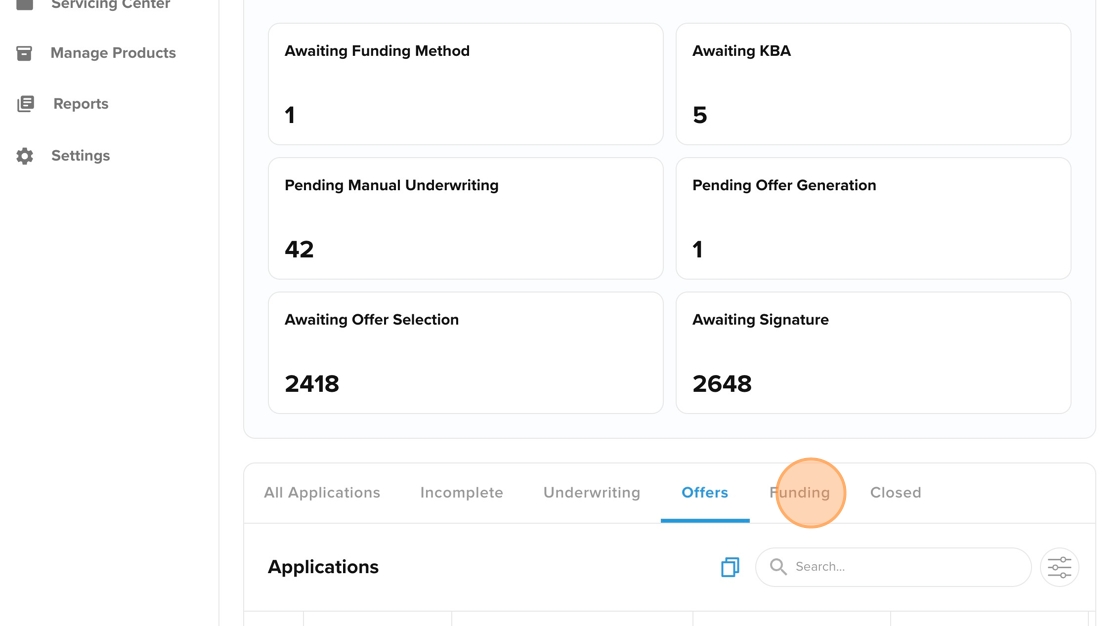
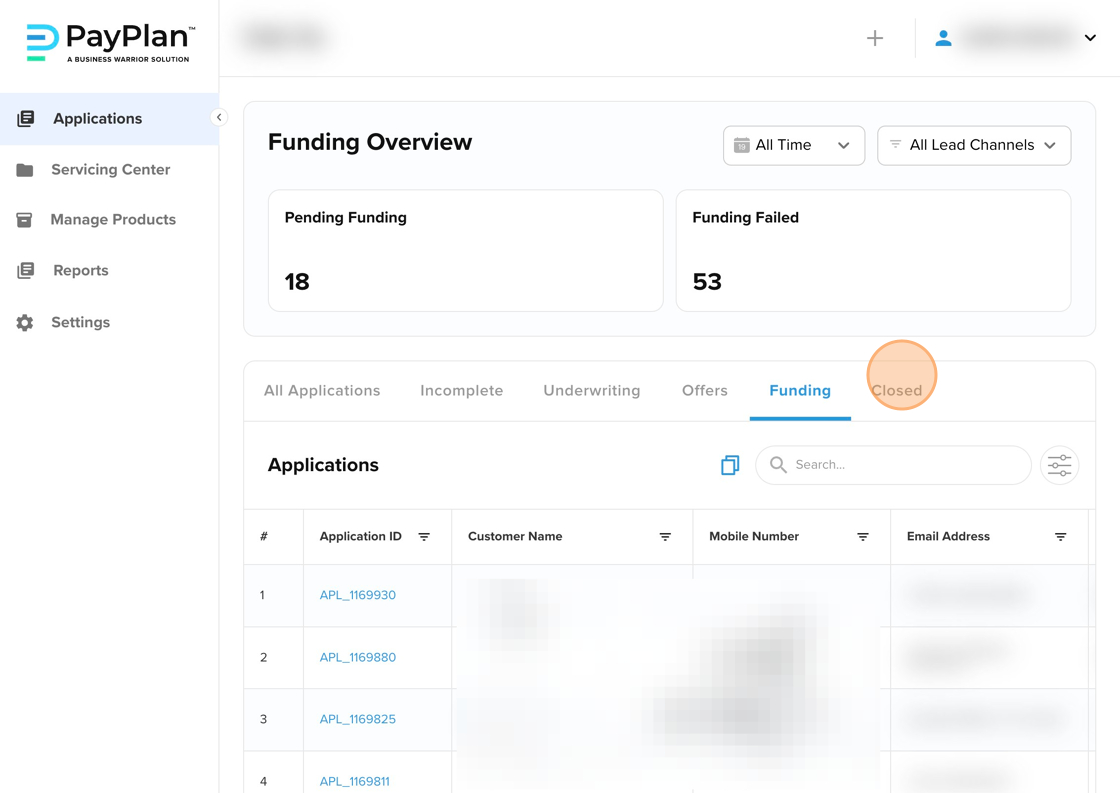
5. Funding
Definition: The "Money Movement" phase. The deal is signed, and the system is queuing the disbursement of funds to the merchant or borrower.
-
What to do here: Monitor the Funding Status column. It will typically show Pending (scheduled) or Completed. If it shows Failed, there may be an issue with the receiving bank account.
6. Closed
Definition: The end of the application lifecycle.
-
What to do here: This is your historical archive. It contains:
-
Funded Deals: Loans that successfully started (these now live in the Servicing Center).
-
Declined: Applications that were rejected.
-
Withdrawn: Applications canceled by you or the customer.
-
Pro Tip: Customizing Your View
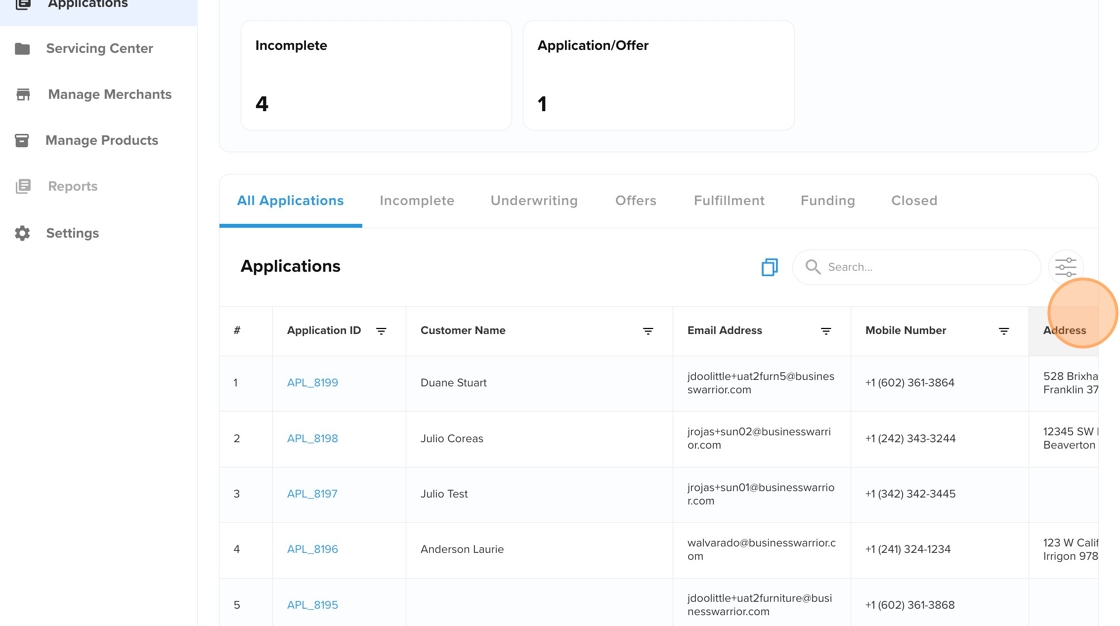
You do not need to look at data that isn't relevant to you. PayPlan allows you to customize the columns in your application table.
-
Click the Columns icon (usually on the right side of the table header).
-
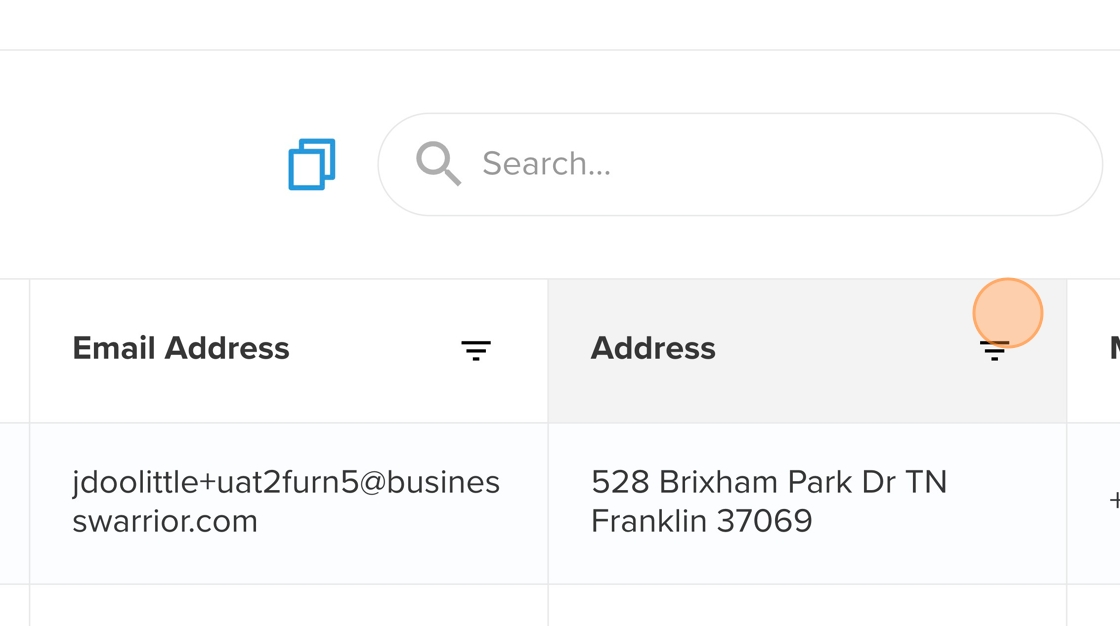
Hide: Uncheck boxes for data you don't need (e.g., "Lead Source" or "Internal ID").
-
Reorder: Drag and drop field names to change the order. For example, if Address is most important to you, drag it to the top of the list so it appears as the first column.
Next Steps
Once an application is successfully Funded and moves to Closed, it transfers to the Servicing Center. To manage payments, balances, and collections for these accounts, you must switch from the Applications tab to the Servicing Center tab.