
Audience: Operations Leads, Servicing Agents, Financial Controllers
Topic: Cash Flow & Reconciliation
Overview
The Payment Logs serve as the source of truth for your portfolio's financial movements. While the main dashboard shows you who is "Current" or "Delinquent," the Payment Logs provide the granular audit trail for every single transaction attempt.
This view is essential for identifying why a payment failed (e.g., "Insufficient Funds" vs. "Invalid Account Number") and provides the necessary tools to reconcile your bank deposits against your loan ledger.
Accessing the Payment Logs
You can access transaction history at the individual loan level within the Servicing Center.
-
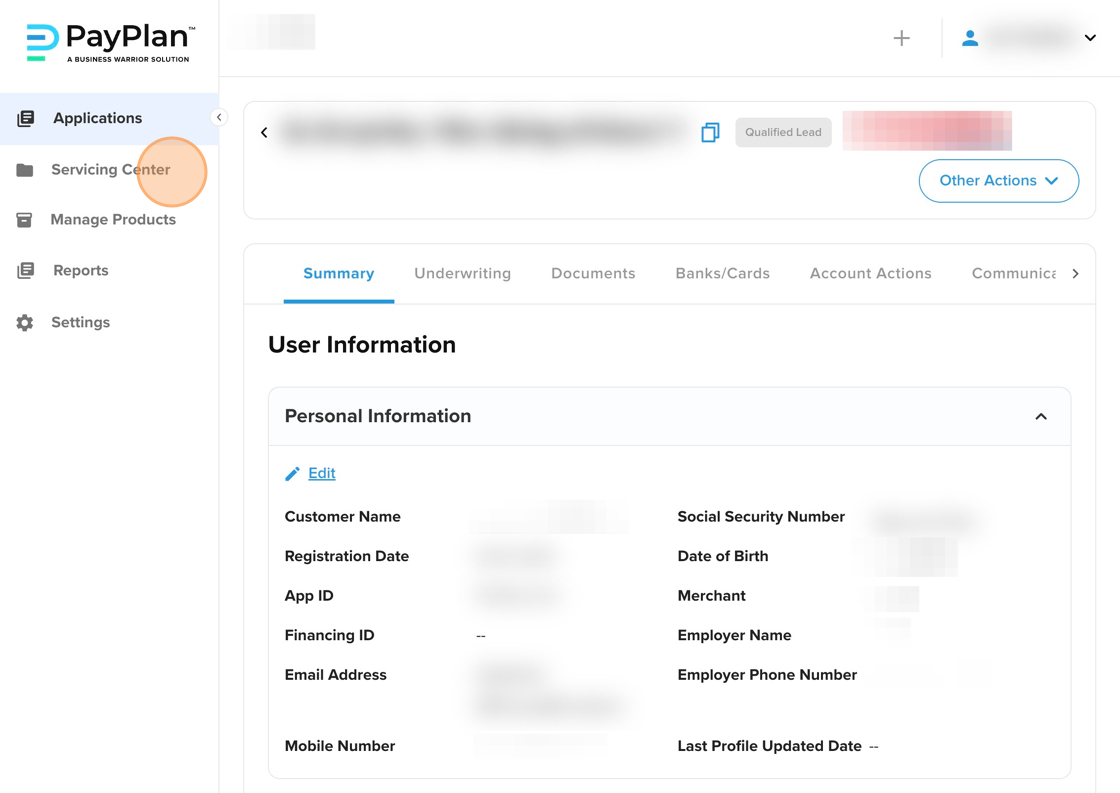
Navigate to the Servicing Center tab.
-
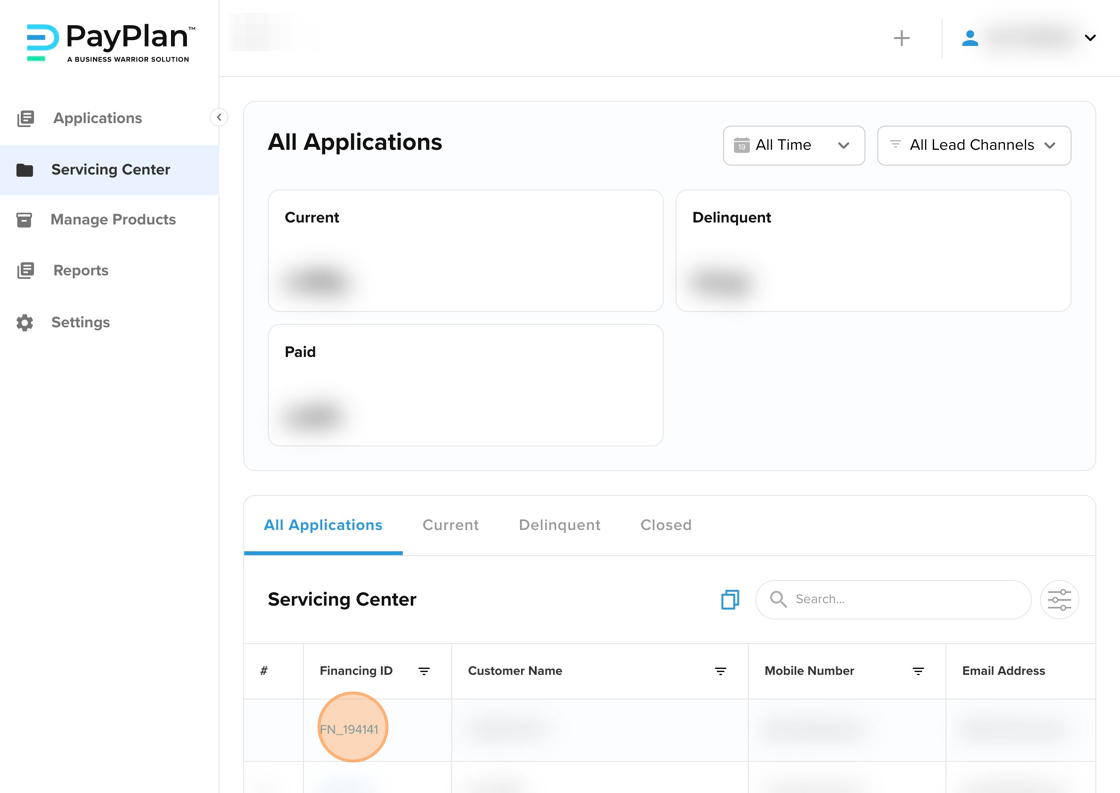
Click on a specific Borrower Name or Finance ID to open their loan file
-
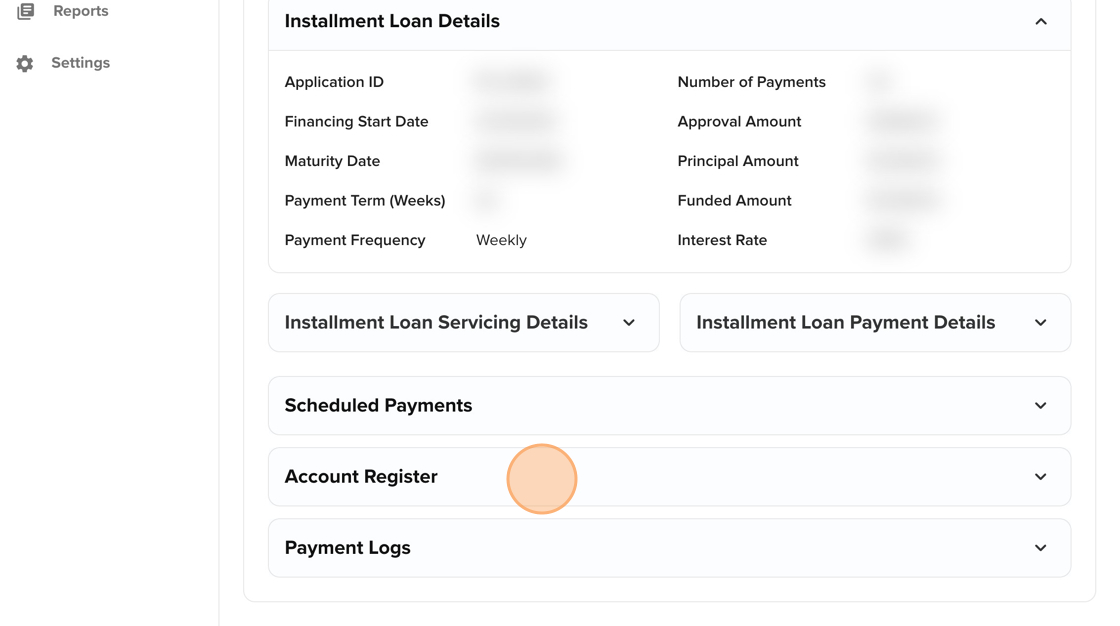
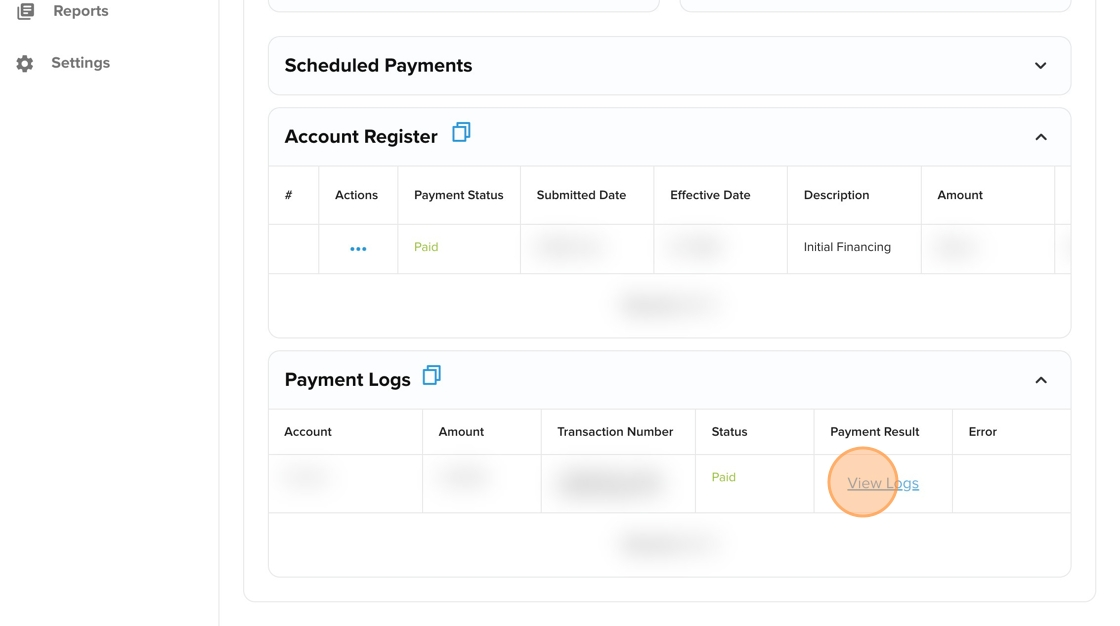
Click the Account Register or Payment Logs tab.
Understanding Log Entries
Every attempt to move money, whether automated or manual, generates a log entry. Only successful payments will post to the ledger, but all attempts (including failures) are recorded here for your review.
Important Note on Time Zones: Most system timestamps in the Payment Logs are recorded in Coordinated Universal Time (UTC). When reconciling these logs against your bank statements or local merchant processor reports, please adjust for your local time zone.
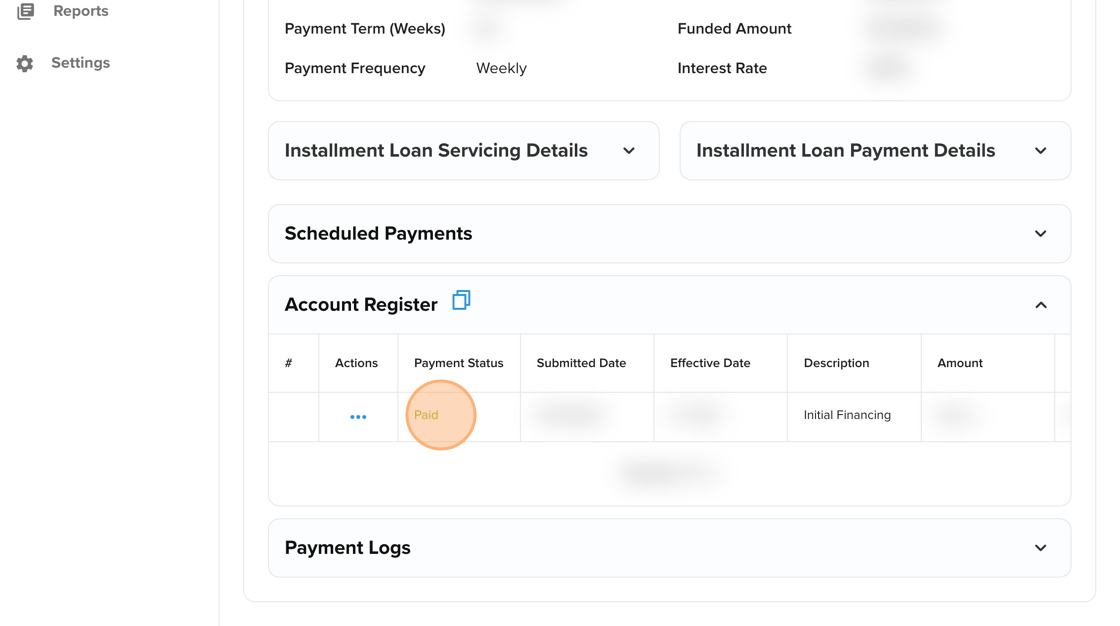
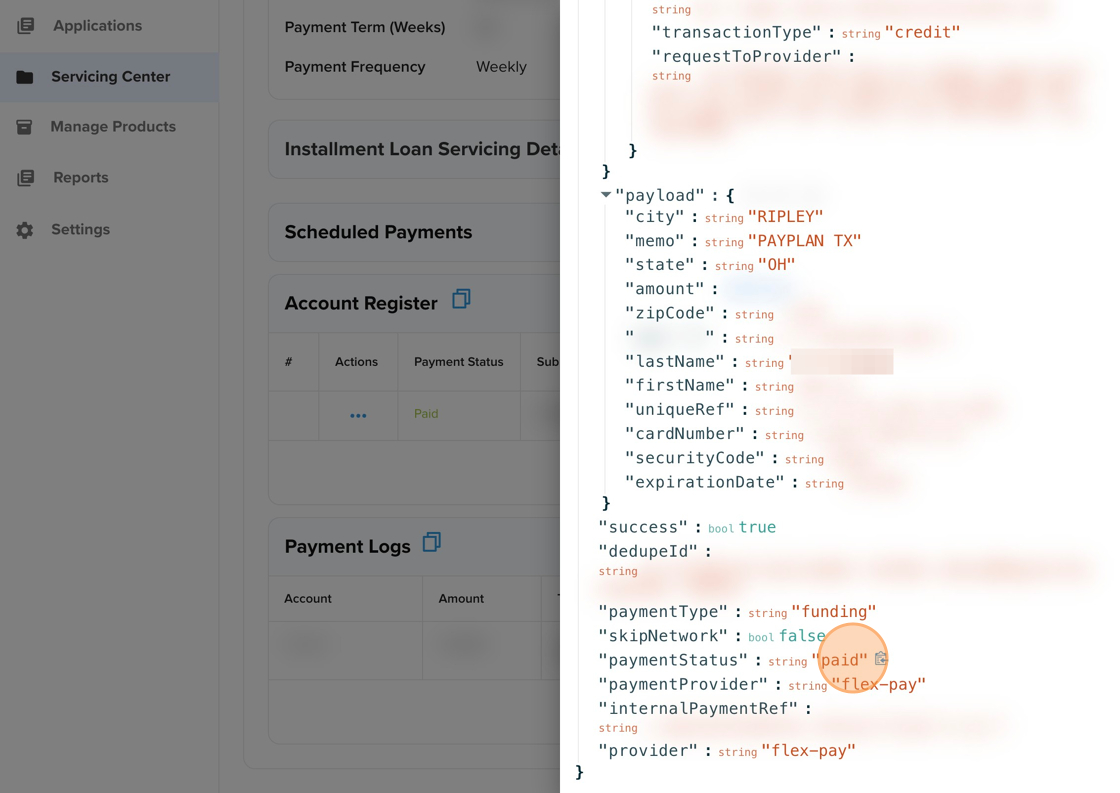
Detailed Payment data can found in the Payment Logs
Key Data Fields:
|
Field |
Description |
|
Date/Time |
The exact timestamp of the transaction attempt (UTC). |
|
Amount |
The dollar value processed. |
|
Method |
The payment instrument used (e.g., ACH, Debit Card ending in 1234). |
|
Status |
Success, Failed, or Refunded. |
|
Network Response |
The specific code returned by the processor (e.g., PayLiance or FlexPay). |
|
Internal Notes |
System-generated context (e.g., "Auto-Retry Attempt 2"). |
Analyzing Failed Payments
When a payment status is Failed, the "Network Response" or "Error" column gives you the actionable intelligence needed to fix it.
-
NSF (Non-Sufficient Funds): The borrower’s bank declined the transaction due to lack of funds. Action: The system will trigger retry logic automatically.
-
Invalid Account / No Account: The bank details are incorrect or the account is closed. Action: You must contact the borrower to obtain a new payment method.
-
Do Not Honor: A generic decline from the card issuer, often due to suspected fraud or daily limits. Action: Ask the borrower to call their bank.
Correcting Transactions
Authorized users can perform corrections directly from the log view.
-
Retrying a Payment: if a payment fails and you have updated the payment method (e.g., the customer added a new card), you can initiate a manual retry:
-
Open the Actions dropdown for the specific loan.
-
Select Make Payment.
-
Select the new method and confirm the amount.
-
Refunding a Payment: if a customer was double-charged or returned the item:
-
Select the Refund Payment option from the Actions menu.
-
Select the specific successful transaction you wish to reverse.
-
Enter a reason for the audit trail (e.g., "Customer Return") and submit.
Troubleshooting & Escalation
Use the following guide to determine if an issue requires a support ticket.
|
Problem |
Possible Cause |
Recommended Action |
|
Missing Log Entry |
Network Latency. |
Wait 15 minutes and refresh the page. If the transaction still does not appear, check your Gateway portal (PayLiance/FlexPay) directly. |
|
Stuck in "Pending" |
Processor Delay. |
ACH transactions can take 24-48 hours to fully clear or return. This is normal banking behavior. |
|
Refund Fails |
Gateway Restriction. |
Some gateways restrict refunds on transactions older than 60-90 days. You may need to issue a manual check or ACH credit. |
When to Submit a Support Ticket
Please submit a ticket via the Business Warrior Service Desk if:
-
Integration Failure: A payment fails with a "System Error" or "API Timeout" message (not a standard bank decline).
-
Ledger Mismatch: The total balance in the Servicing Center does not reflect a successful payment shown in the logs.
-
Double Post: A single transaction appears twice in the log but was only authorized once.