
Audience: All Users (Starter, Core, Pro, Enterprise)
Topic: Loan Management & Collections
Overview
The Servicing Center is the heartbeat of your financing operation. Once a customer is approved and the deal is funded, this is where the financing record "lives."
This interface is designed to give you total visibility into your cash flow. It allows you to track who is paying on time, catch missed payments immediately, and handle customer service requests like refunds or early payoffs without needing to call support.
Accessing the Servicing Center
-
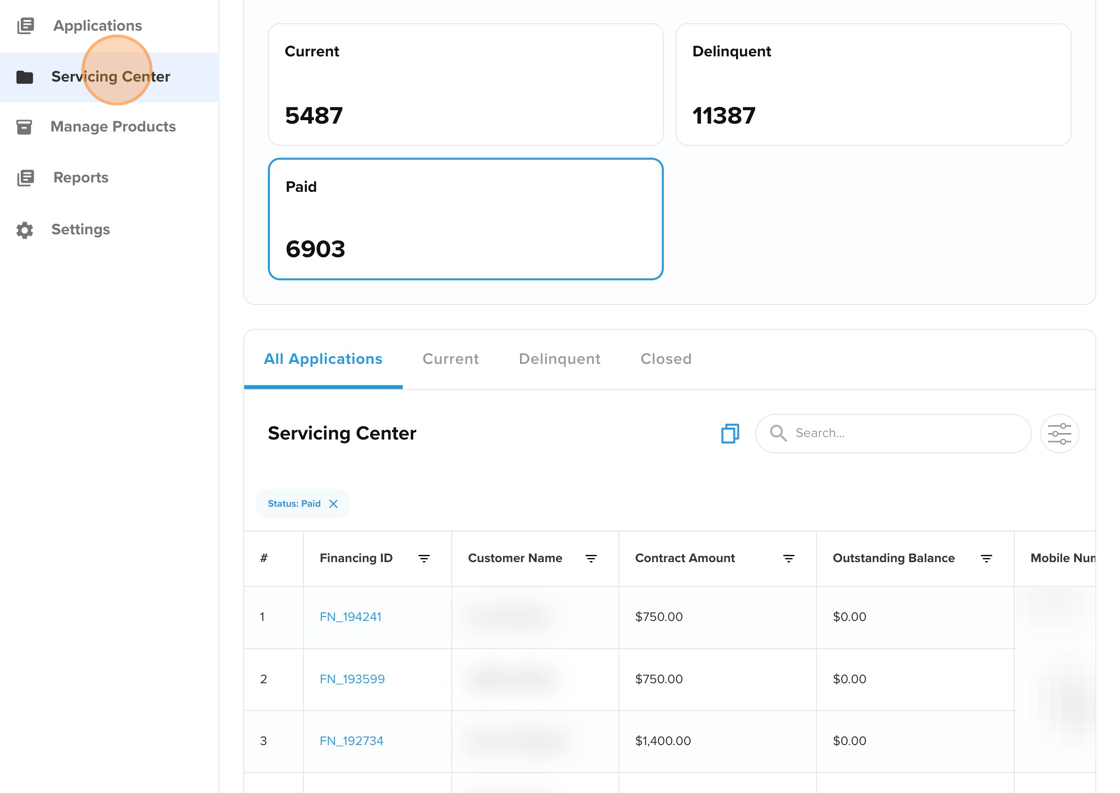
Log into the PayPlan Admin Portal.
-
Click the Servicing Center tab in the top navigation bar.
Key Components
1. The Loan Dashboard (Loan Summary)
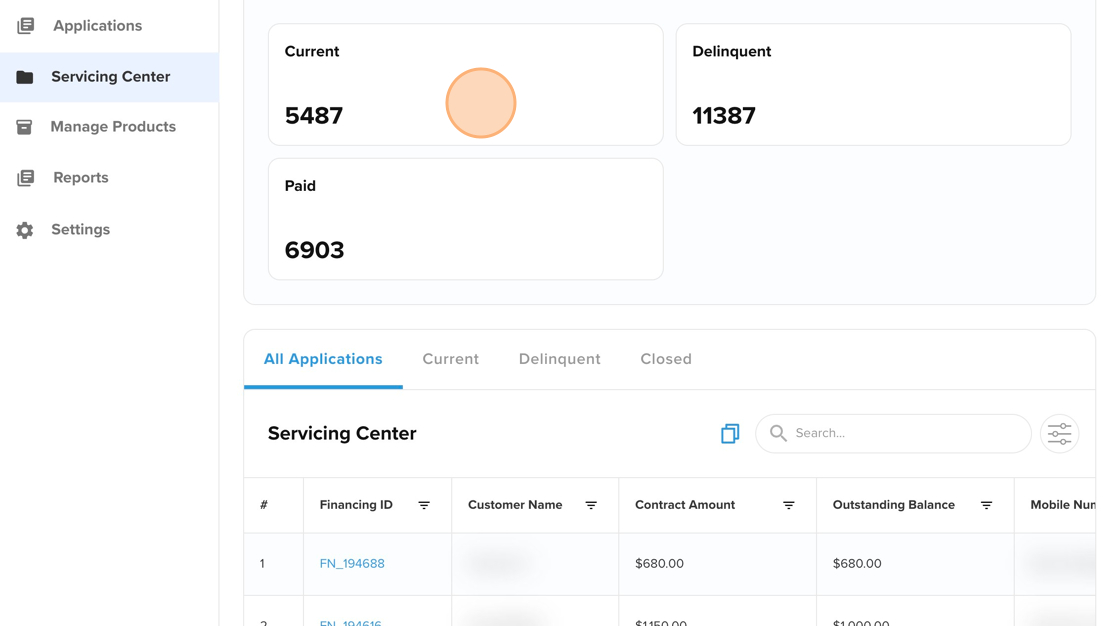
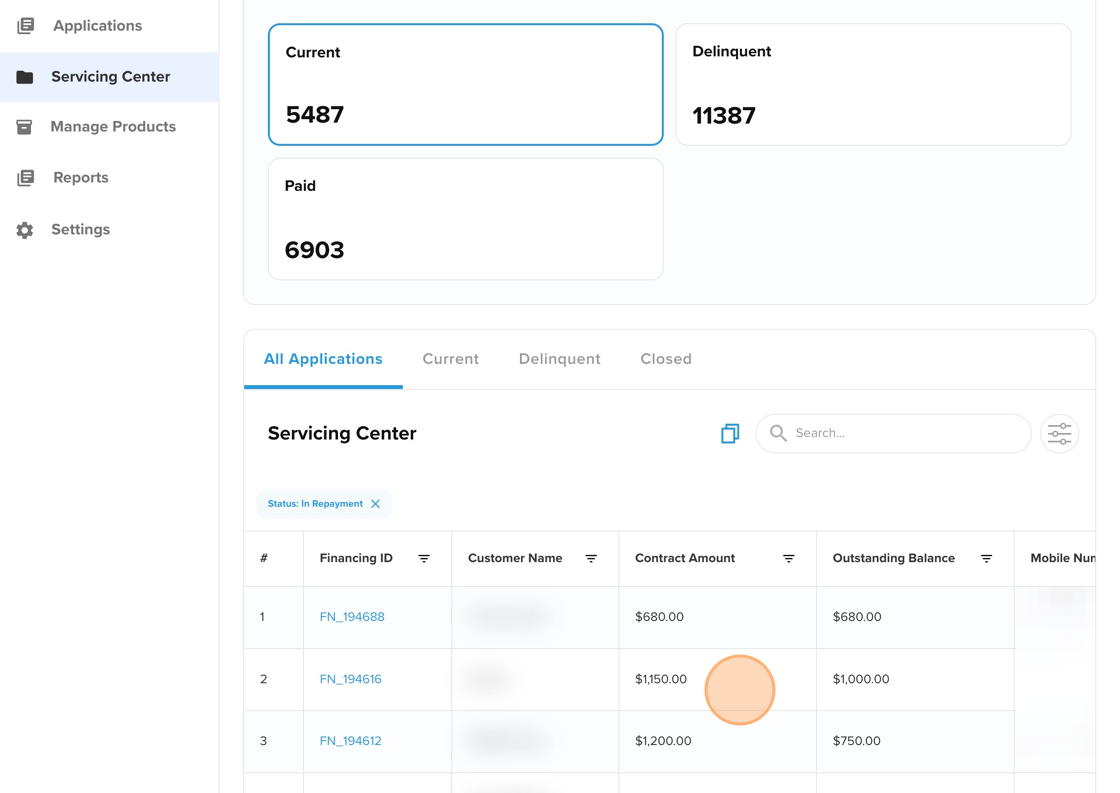
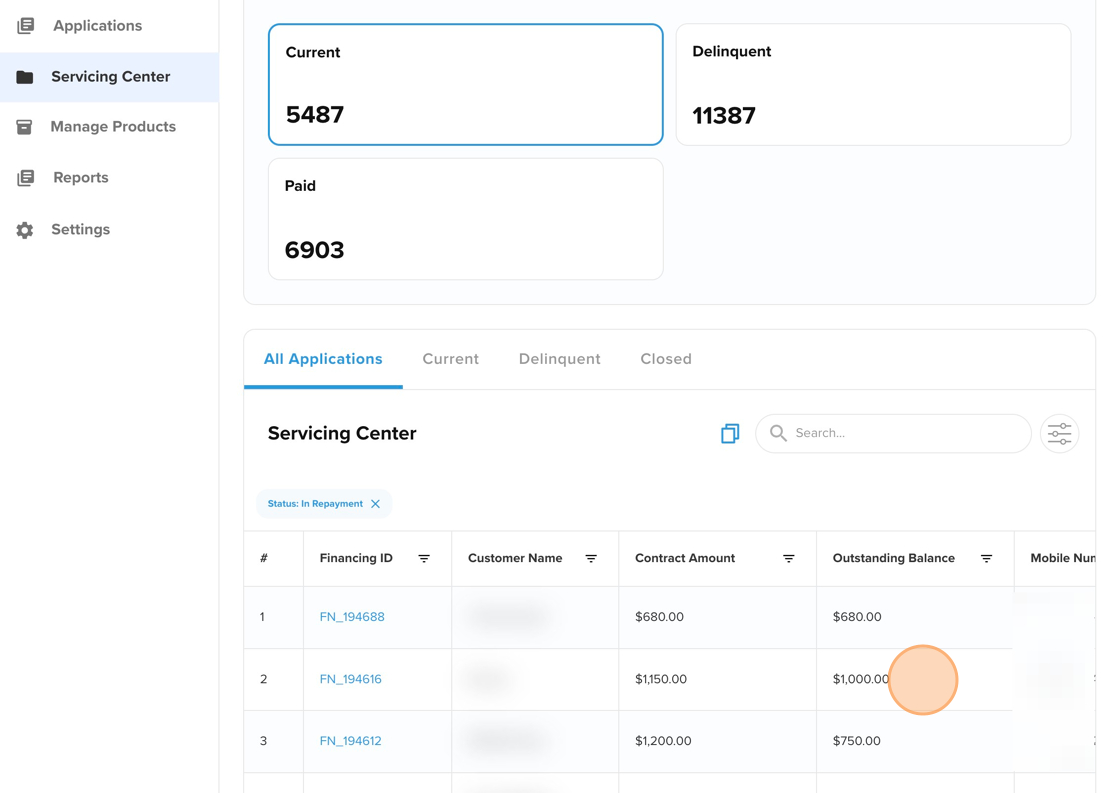
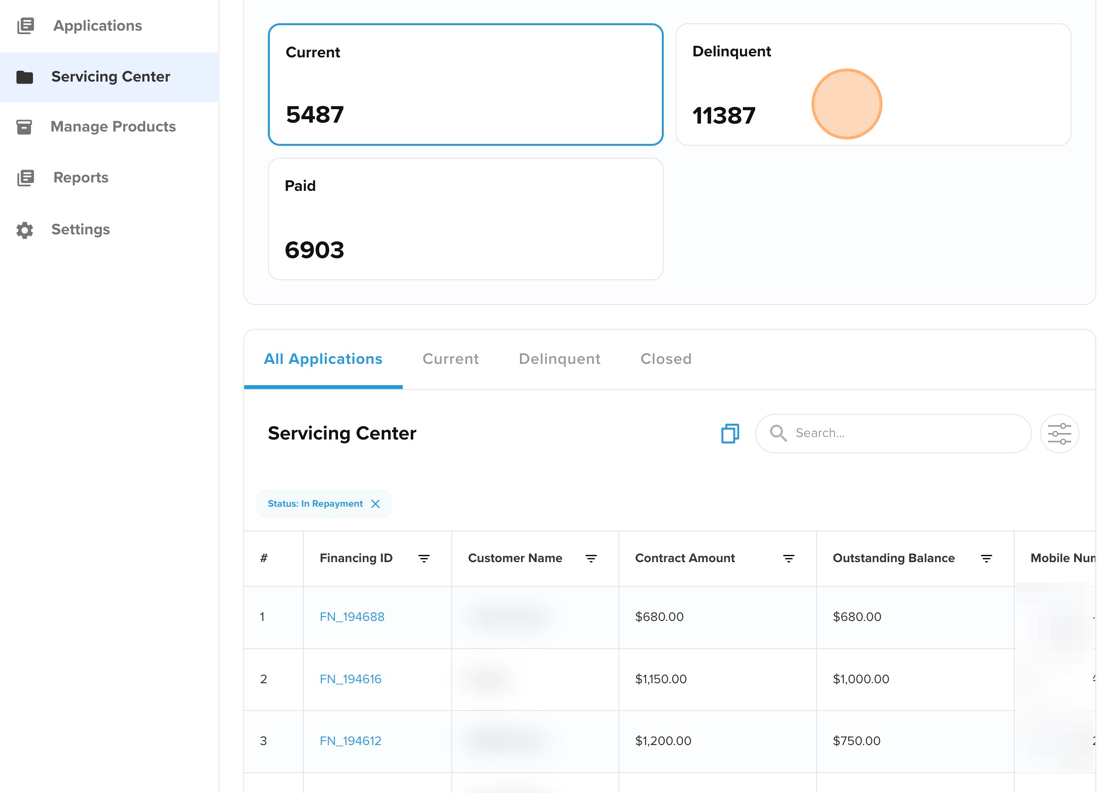
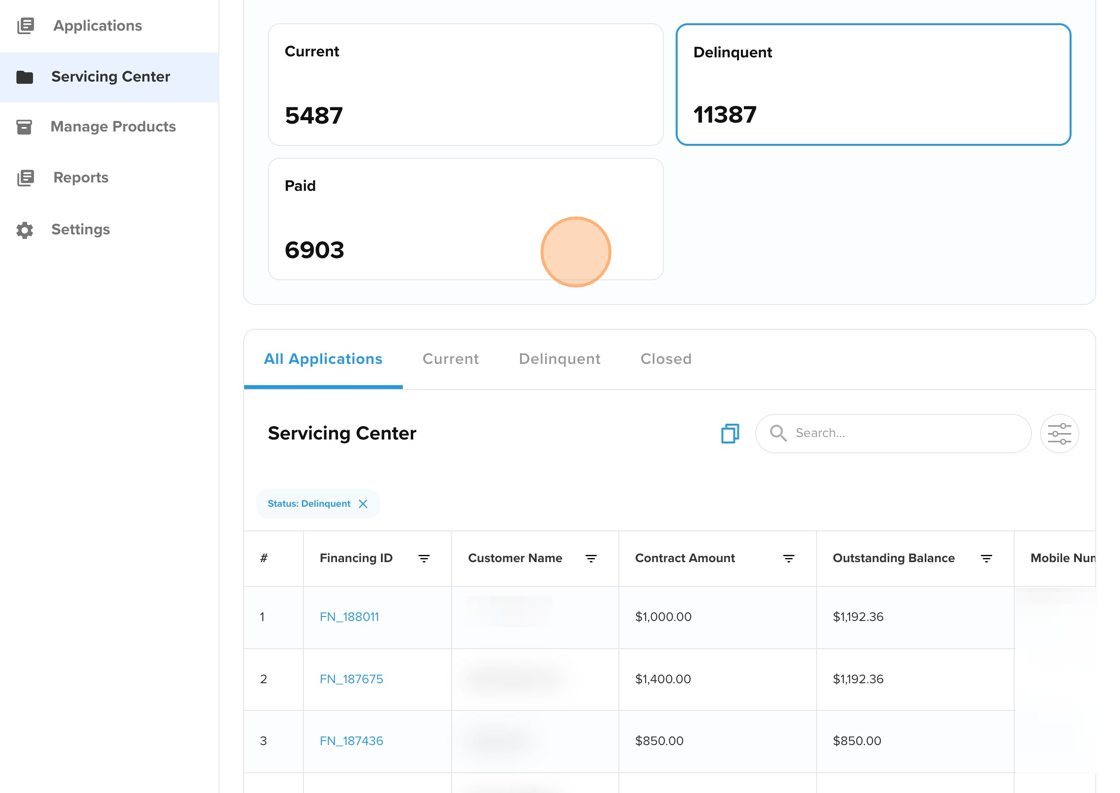
This is your main view. It displays a dynamic list of every active loan in your portfolio.
-
At a Glance: See the Borrower Name, Current Balance, Status (e.g., Current or Delinquent), and the Next Payment Due Date instantly.
-
Sort & Filter: You can filter this list to show only "Delinquent" accounts if you want to focus on collections, or search for a specific customer by name or Finance ID.
2. Quick Actions Button
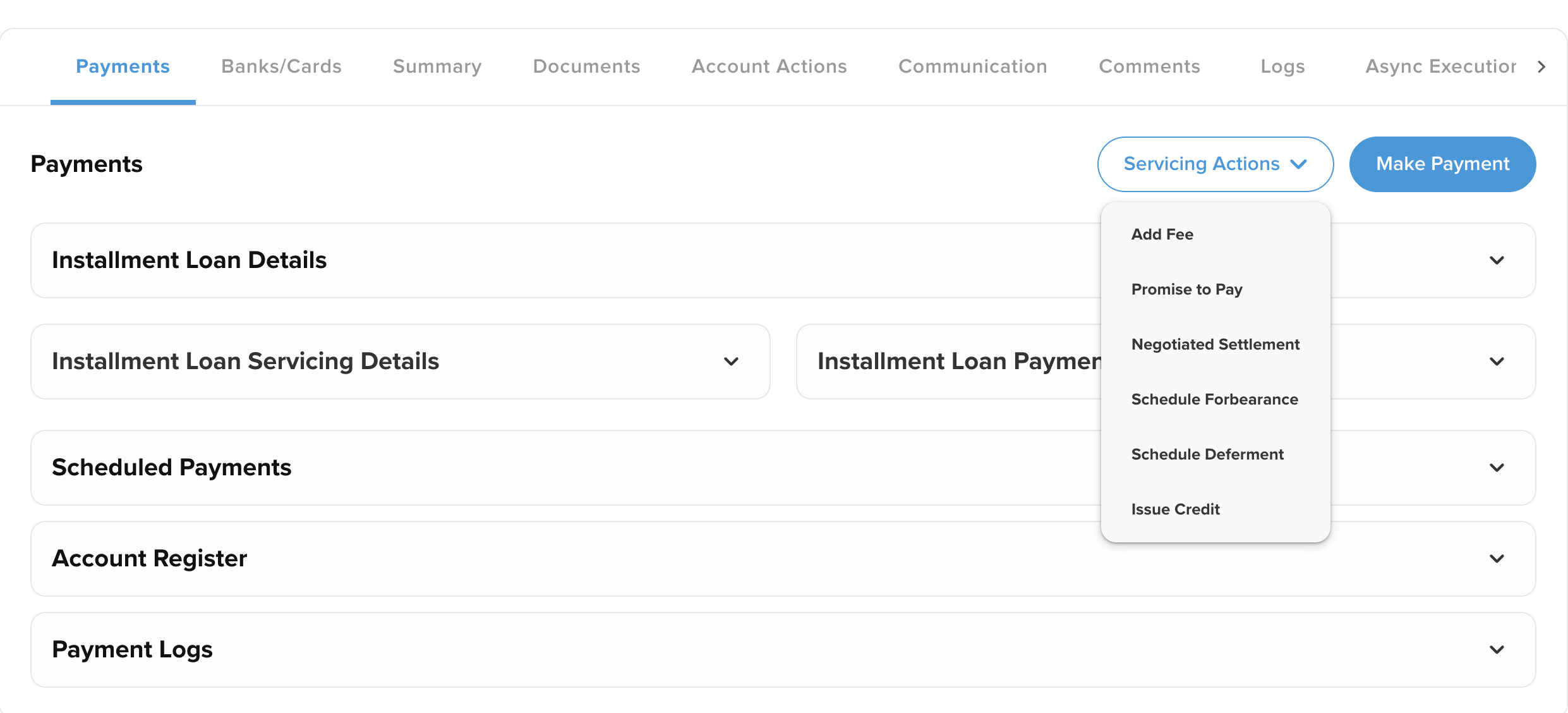
You do not need to navigate through complex menus to fix a customer issue. Every record has an Actions dropdown that lets you resolve tasks immediately.
-
Make Payment: Process a manual payment if a customer calls with a new debit card.
-
Refund Payment: correct a duplicate charge or issue a refund.
-
Add Fee: Manually apply a late fee or NSF fee if your policies require it.
-
Send Communication: Trigger a manual email or text message to the borrower.
-
Schedule Forbearance: Pause payments temporarily for a customer experiencing hardship.
3. The Timeline (Account Actions Tab)
Want to know what is going to happen next? The Account Actions tab gives you a timeline view of the loan.
-
Future Events: See exactly when the next auto-pay is scheduled to run.
-
Past Events: See a history of every action the system has taken, such as sending a payment reminder or attempting a charge.
4. Transaction History (Payment Logs)
This is your audit trail. Every single movement of money is recorded here.
-
Details: View the date, amount, and payment method (Card vs. ACH) for every transaction.
-
Status: Instantly see if a payment was Successful, Failed, or Refunded.

5. Message History (Communication Logs)
Never guess if a customer received a notification. This log tracks every message the system sends.
-
Transparency: See every email (like payment receipts or late notices) and SMS message sent to the borrower.
-
Compliance: This ensures you have a record of all communication attempts in case of a dispute.
How to Perform Common Tasks
Processing a Manual Payment
If a customer is in your store or on the phone and wants to pay extra or catch up on a missed payment:
-
Locate the customer in the loan list.
-
Select Make Payment from the Actions dropdown.
-
Enter the amount and select the payment method (or add a new card).
-
Click Submit.
Issuing a Refund
-
Select the loan.
-
Click Refund Payment in the Actions dropdown.
-
Select the specific transaction you need to refund and enter the reason.
-
Click Submit.
Adding a Fee
-
Click the loan row.
-
Select Add Fee from the dropdown.
-
Choose the fee type (e.g., Late Fee or NSF Fee) and enter the amount.
-
Click Confirm.
Glossary: Understanding Loan Statuses
The system uses specific labels to tell you exactly where a loan stands.
|
Status Label |
What it Means |
|
Current |
The customer is in good standing. Payments are being made on time. |
|
Delinquent |
Action needed. One or more scheduled payments were missed or failed. |
|
Pending Payment |
Everything is normal. The system is waiting for the next scheduled date to process a payment. |
|
Funding Failed |
There was an issue moving the initial money. The loan will not start until this is fixed. |
|
Forbearance |
You have approved a temporary pause on payments (and interest) for this customer. |
|
Promise to Pay |
A customer was late but has committed to making a specific payment by a future date. |
|
Closed (Won) |
Success. The loan has been paid off in full. |
|
Closed (Loss) |
The loan was written off due to non-payment. |
|
Refunded |
A specific payment was returned to the customer. |
|
ACH Return |
A bank payment failed (e.g., Non-Sufficient Funds or Closed Account). |
|
Manual Review |
The system has flagged a payment or action that requires a human to look at it. |